

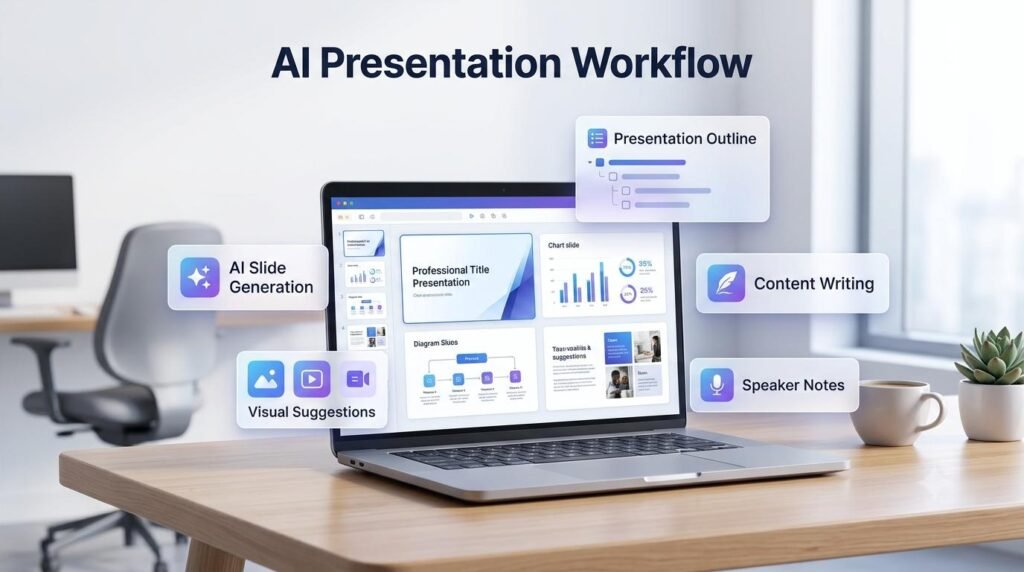
Creating a professional presentation takes more than putting text on slides. You need to organize ideas, structure information, write clear content, select visuals, and prepare a logical flow that helps your audience understand the message. An AI Presentation Workflow can simplify these tasks by helping you plan presentations, develop slide content, organize key points, and prepare speaker notes more efficiently.
Whether you are a student, freelancer, business owner, trainer, or working professional, AI can support different stages of presentation creation. In this practical guide, you will learn how to use AI to create presentations step by step while maintaining control over accuracy, design, and the final message.
You can also explore practical ways to improve workplace productivity with AI and better work habits.
Table of Contents
ToggleWhat Is an AI Presentation Workflow?
An AI presentation workflow is a process that uses artificial intelligence to assist with planning, writing, organizing, and improving presentation content.
Instead of starting with a blank slide, you can use AI to develop an outline, organize your ideas into sections, write slide content, suggest visuals, and prepare speaker notes.
AI can help with tasks such as:
Brainstorming presentation topics.
Understanding the target audience.
Creating a logical slide structure.
Writing slide titles and key points.
Simplifying complex information.
Suggesting charts and visual concepts.
Preparing speaker notes.
Reviewing presentation content.
AI supports the creation process, but your knowledge and judgment are still necessary to produce an accurate and useful presentation.
If you want to apply AI to other repetitive tasks, learn how to build a practical AI workflow.
Why Use AI for Creating Presentations?
Using AI during presentation preparation can make several tasks easier.
1. Save Time on Presentation Planning
Starting a presentation from scratch can take considerable time. AI can help you organize your ideas into a structured outline and suggest sections based on your topic.
2. Organize Information More Clearly
A presentation should communicate important information without overwhelming the audience. AI can help convert long explanations into shorter, meaningful points.
3. Improve Slide Content
AI can suggest clear slide titles, concise bullet points, examples, and explanations that make your presentation easier to follow.
4. Generate Visual Ideas
You can ask AI to suggest diagrams, charts, illustrations, and other visual concepts that support the message of each slide.
5. Prepare Speaker Notes
AI can help turn slide points into a natural speaking script, making it easier to explain your ideas during a presentation.
A clear presentation structure can also help you organize your ideas and communicate information more effectively.
How to Use AI for Creating Presentations: Step-by-Step Workflow
Follow these steps to create a presentation with AI.
Step 1: Define Your Presentation Goal
Before asking AI to create slides, decide what your presentation needs to achieve.
Ask yourself:
What is the main topic?
Who will view the presentation?
What should the audience understand?
How much time is available?
What action or decision should follow?
A presentation for a business proposal will need a different structure from a classroom presentation or a training session.
Example Prompt:
“I need to create a presentation about improving workplace productivity with AI. The audience is small business owners and managers. The goal is to explain practical applications, benefits, limitations, and implementation steps. Suggest a suitable presentation structure for a 15-minute session.”
A clear AI Presentation Workflow helps you move from an initial idea to a structured slide deck while keeping the presentation focused on its main objective.
Step 2: Create a Presentation Outline
Once the goal is clear, ask AI to prepare a slide-by-slide outline.
A useful outline may include:
Title Slide
Introduction
Problem or Background
Main Ideas
Practical Examples
Supporting Information
Recommendations
Conclusion
Questions and Discussion
The number and order of slides should depend on the topic and available presentation time.
Example Prompt:
“Create a 10-slide presentation outline about improving workplace productivity with AI. For each slide, provide a title, its main purpose, and the key information that should be included. Use a logical flow and avoid repeating ideas.”
Step 3: Write Clear Slide Content
After approving the outline, develop the content for each slide.
Avoid placing long paragraphs on slides. Keep the main message concise and use supporting explanations where necessary.
Example Prompt:
“Write the content for each slide in the approved presentation outline. Use a clear heading and 3–5 concise bullet points per slide. Include practical examples where useful. Keep the language professional and easy to understand. Do not invent statistics or unsupported claims.”
Review the content and make sure every slide contributes to the presentation’s main goal.
Step 4: Simplify Complex Information
Some topics involve technical terms, lengthy explanations, or complicated processes. AI can help explain these ideas in simpler language.
Example Prompt:
“Rewrite the following information for a presentation aimed at beginners. Preserve the original meaning, remove unnecessary technical language, and explain important terms in simple words. Keep the result suitable for presentation slides.”
You can also ask AI to compare concepts, create short examples, or organize information into a simple sequence.
Step 5: Plan Slide Design and Visuals
A good presentation should communicate through both text and visuals.
Ask AI to suggest an appropriate visual for each slide, such as:
Process diagrams.
Comparison charts.
Timelines.
Simple illustrations.
Infographics.
Relevant photographs.
Data visualizations.
Example Prompt:
“Review the presentation outline and suggest one suitable visual for each slide. Explain whether the slide would benefit from a diagram, chart, illustration, photograph, or simple layout. Avoid decorative visuals that do not support the message.”
Choose visuals that are relevant, accurate, and suitable for your audience.
Similar AI techniques can also support AI for content creation, including planning, writing, and visual development.
Step 6: Create the Presentation in a Slide Tool
After preparing the outline and content, move it into your preferred presentation software.
You can use presentation tools that support AI-assisted creation, or use a conventional slide editor and apply your own design.
While building the slides, focus on:
Consistent typography.
Readable font sizes.
Balanced spacing.
Clear headings.
Limited text per slide.
Consistent colors and layouts.
Relevant and properly attributed visuals.
Do not assume that an AI-generated design is automatically presentation-ready. Review every slide.
Step 7: Prepare Speaker Notes
Speaker notes help you explain the information rather than simply reading the slide.
Example Prompt:
“Prepare speaker notes for each slide in this presentation. Explain the key points in a natural speaking style. Add short transitions between slides and include practical examples where useful. Do not introduce claims that are missing from the slide content or supporting material.”
Adjust the notes to match your own speaking style and presentation duration.
Step 8: Review and Improve the Presentation
Before presenting, review the entire slide deck.
Check:
Does the presentation have a clear purpose?
Does the slide order make sense?
Are the facts and figures accurate?
Are the slides easy to read?
Are the visuals relevant?
Are there repeated or unnecessary points?
Do the speaker notes match the slides?
Is the presentation suitable for the audience?
Ask a colleague or another reviewer to provide feedback when possible.
A Practical AI Presentation Workflow Example
Imagine a small business owner needs to prepare a presentation about a new marketing strategy for the team.
The process could look like this:
| Stage | AI-Assisted Task |
|---|---|
| Planning | Define the presentation goal and audience |
| Research | Organize verified information |
| Outline | Prepare the slide-by-slide structure |
| Content | Write concise slide titles and key points |
| Visuals | Suggest suitable charts and diagrams |
| Design | Build and format the slides |
| Speaker Notes | Prepare explanations for each slide |
| Review | Check accuracy, clarity, and consistency |
This process helps turn an initial idea into a structured presentation that is easier to prepare and deliver.
These presentation skills can also support online business productivity when preparing proposals, reports, and business plans.
Useful AI Prompts for Creating Presentations
You can reuse these prompts for different presentation topics.
Prompt 1: Presentation Outline
“Create a presentation outline about [topic] for [target audience]. Suggest the number of slides, a clear title for each slide, the main purpose, and the important points to cover. Organize the presentation in a logical order.”
Prompt 2: Slide Content
“Write concise content for the following presentation slide. Include a clear title and a maximum of five meaningful bullet points. Use simple language and preserve the original information.”
Prompt 3: Visual Suggestions
“Suggest an appropriate visual for each slide in this presentation. Consider charts, diagrams, timelines, comparisons, and illustrations. Explain how each visual supports the slide’s main message.”
Prompt 4: Speaker Notes
“Write natural speaker notes for the presentation slides below. Explain each point clearly, include smooth transitions, and keep the speaking style professional and conversational.”
Prompt 5: Presentation Review
“Review this presentation for clarity, structure, repetition, readability, and logical flow. Identify weak slides and suggest specific improvements. Do not change factual information without explaining why.”
Common Mistakes to Avoid When Using AI for Presentations
1. Accepting AI-Generated Information Without Verification
AI can produce incorrect facts, figures, references, and explanations. Verify important information before including it in your slides.
2. Putting Too Much Text on Slides
A presentation is not a full report. Use concise points and explain additional details verbally or through speaker notes.
3. Using Irrelevant Visuals
Every visual should help explain the slide’s message. Avoid adding images only to make slides look attractive.
4. Ignoring the Audience
A presentation should match the audience’s knowledge, interests, and expectations. Review the language and examples accordingly.
5. Skipping the Final Review
Check the presentation in slideshow mode before sharing or delivering it. Formatting problems may not be obvious while editing individual slides.
Tips to Improve Your AI Presentation Workflow
Define the presentation goal before generating content.
Provide AI with relevant background information.
Create and approve the outline before writing all slides.
Keep each slide focused on one main message.
Verify facts, statistics, and references.
Use visuals to explain information rather than decorate slides.
Prepare speaker notes in your own speaking style.
Review the complete presentation in slideshow mode.
Keep a copy of the original source material.
Learning to use AI responsibly can also help you develop practical digital skills for modern work.
Frequently Asked Questions
1. Can AI create a complete presentation?
Yes. Some AI-powered presentation tools can generate an initial slide deck from a topic, outline, or document. However, the result should be reviewed and improved before use.
2. How do I use ChatGPT to create a presentation?
You can provide ChatGPT with your topic, audience, purpose, and presentation duration. Ask it to create an outline, draft slide content, suggest visuals, and prepare speaker notes. You can then transfer the approved content into your presentation software.
3. Can AI create PowerPoint slides?
Some presentation platforms offer AI-assisted PowerPoint creation or export features. The exact capabilities depend on the tool and its supported file formats.
4. Are AI-generated presentations professional?
They can provide a useful starting point, but professional quality depends on the accuracy of the content, slide design, visual consistency, and relevance to the audience.
5. Can AI create speaker notes?
Yes. AI can turn slide content into speaker notes, explanations, and presentation scripts. Review them to ensure they accurately represent the slides.
6. Should I use AI for every presentation?
Not necessarily. AI is most useful for tasks such as planning, organizing information, drafting content, and preparing notes. Your experience and judgment should guide the final presentation.
Final Thoughts
AI can make presentation creation more organized by helping with planning, writing, visual ideas, and speaker notes. Instead of relying on AI to generate everything automatically, use it as an assistant throughout a structured workflow.
Start with a clear goal, prepare an outline, develop concise slide content, choose relevant visuals, and review the final presentation carefully.
The best AI presentation workflow combines the speed of AI assistance with human knowledge, accuracy, and creativity.
Related Guides: Explore More Practical AI and Work Guides
Explore practical AI guides to improve workplace productivity, organize everyday tasks, create better content, and build smarter digital workflows.
AI & Work
Learn how AI can help you organize tasks, improve productivity, and work more efficiently.

AI Workflows
Discover practical AI workflows for research, content, business tasks, and everyday productivity.

AI for Content Creation
Learn how AI can support research, writing, editing, and content planning.

Digital Business
Explore practical guidance for online business, freelancing, and business productivity.

Creator Growth
Discover ways to plan content, improve creator productivity, and grow an online audience.

Digital Skills
Build practical AI, research, productivity, and digital skills for modern work.
Explore Useful AI and Digital Tools with Arzoo
Looking for practical tools to simplify your everyday digital tasks? Explore useful online tools and utilities on Arzoo to support your productivity, content creation, and daily work.
Discover Digital Resources at DigiMarket
Explore useful eBooks, PDFs, templates, and digital resources designed to support your learning, productivity, and online growth. Find practical resources to help you put new ideas into action.